> ## Documentation Index
> Fetch the complete documentation index at: https://liv-creators.mintlify.site/llms.txt
> Use this file to discover all available pages before exploring further.
# Additional Features (MR)
Now that all the tedious stuff is over, let's talk about some additional features we have for mixed reality.
#### **LIV Viewfinder**
How do you know what your framing looks like once you've put the headset on?\
\
Enter the viewfinder! It is disabled by default, but you should totally enable it now that you know what it is.
* Head to the **Viewfinder** page in LIV and tick the box to enable it.
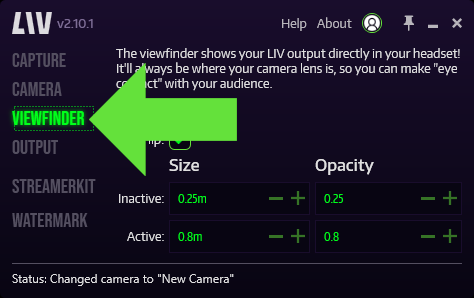 When doing mixed reality, the viewfinder will always be located where your camera lens is, so that you are making "eye contact" with your viewers while looking at it.
***
#### **Field of View (FoV) Override**
This is the ability to artificially change the FoV of your camera. By increasing this number you'll essentially simulate a wider FoV, showing more of the game and making yourself appear smaller.
1. Edit your current camera profile, and head to **Calibration.**
2. Use the FoV Override bar or the +- symbols to dial in your desired FoV.
3. If changing the FoV destroys your calibration, try re-launching the game you're capturing through LIV. Some games don't support "hot reloading" of game files and will need to be restarted for changes to take effect.
When doing mixed reality, the viewfinder will always be located where your camera lens is, so that you are making "eye contact" with your viewers while looking at it.
***
#### **Field of View (FoV) Override**
This is the ability to artificially change the FoV of your camera. By increasing this number you'll essentially simulate a wider FoV, showing more of the game and making yourself appear smaller.
1. Edit your current camera profile, and head to **Calibration.**
2. Use the FoV Override bar or the +- symbols to dial in your desired FoV.
3. If changing the FoV destroys your calibration, try re-launching the game you're capturing through LIV. Some games don't support "hot reloading" of game files and will need to be restarted for changes to take effect.
 If your body is cut off in the camera frame, you will remain cut off as you change the FoV and it will look odd. This feature is best used when you can see your whole body in the camera frame before changing the FoV.
***
#### **Changing Your Output Size, FPS, and Location**
You can also control the size, refresh rate, and location of the output window. This is particularly useful if you want it to take up less space on your desktop, or if you want to move it to a separate monitor or a projector.
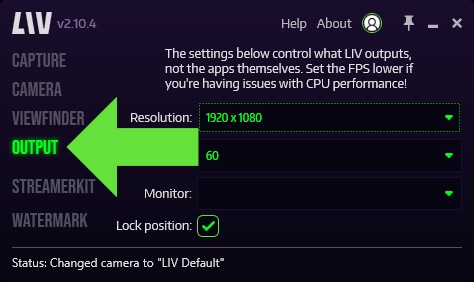
1. Click on **Output** in the left tab to open up the output settings page.
If your body is cut off in the camera frame, you will remain cut off as you change the FoV and it will look odd. This feature is best used when you can see your whole body in the camera frame before changing the FoV.
***
#### **Changing Your Output Size, FPS, and Location**
You can also control the size, refresh rate, and location of the output window. This is particularly useful if you want it to take up less space on your desktop, or if you want to move it to a separate monitor or a projector.
1. Click on **Output** in the left tab to open up the output settings page.
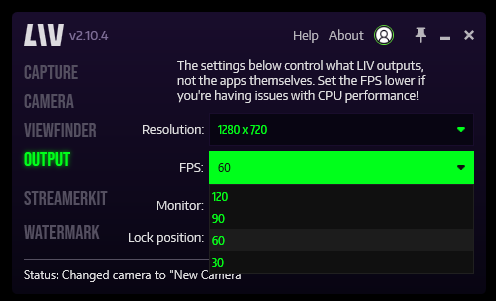
 2. In **Resolution**, pick your output size. Generally, you want the output resolution to match your target resolution in **Capture**.
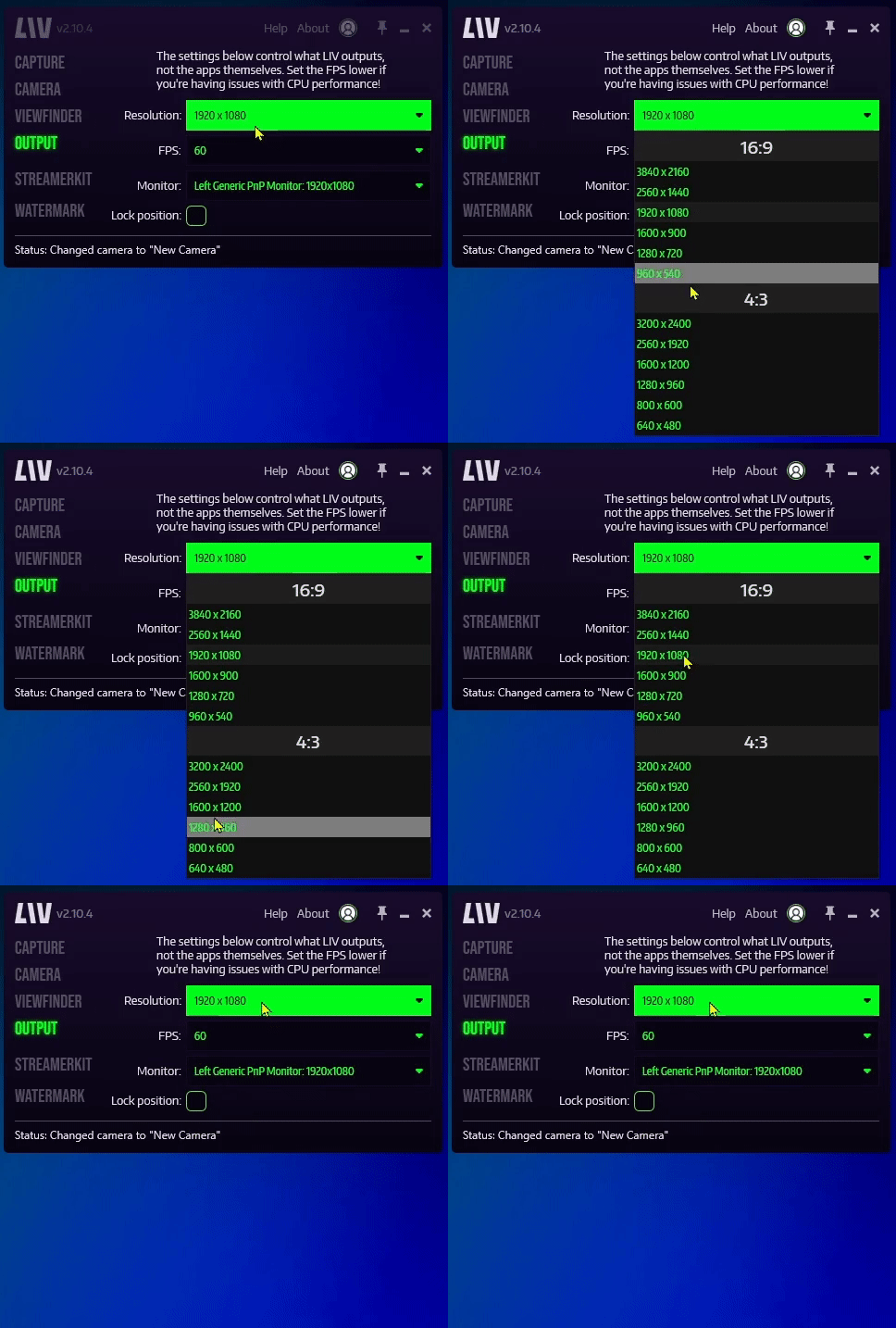 3. In **FPS**, pick your refresh rate. If you're having performance issues, you can try lowering this value.
 4. In **Monitor**, select your main monitor.
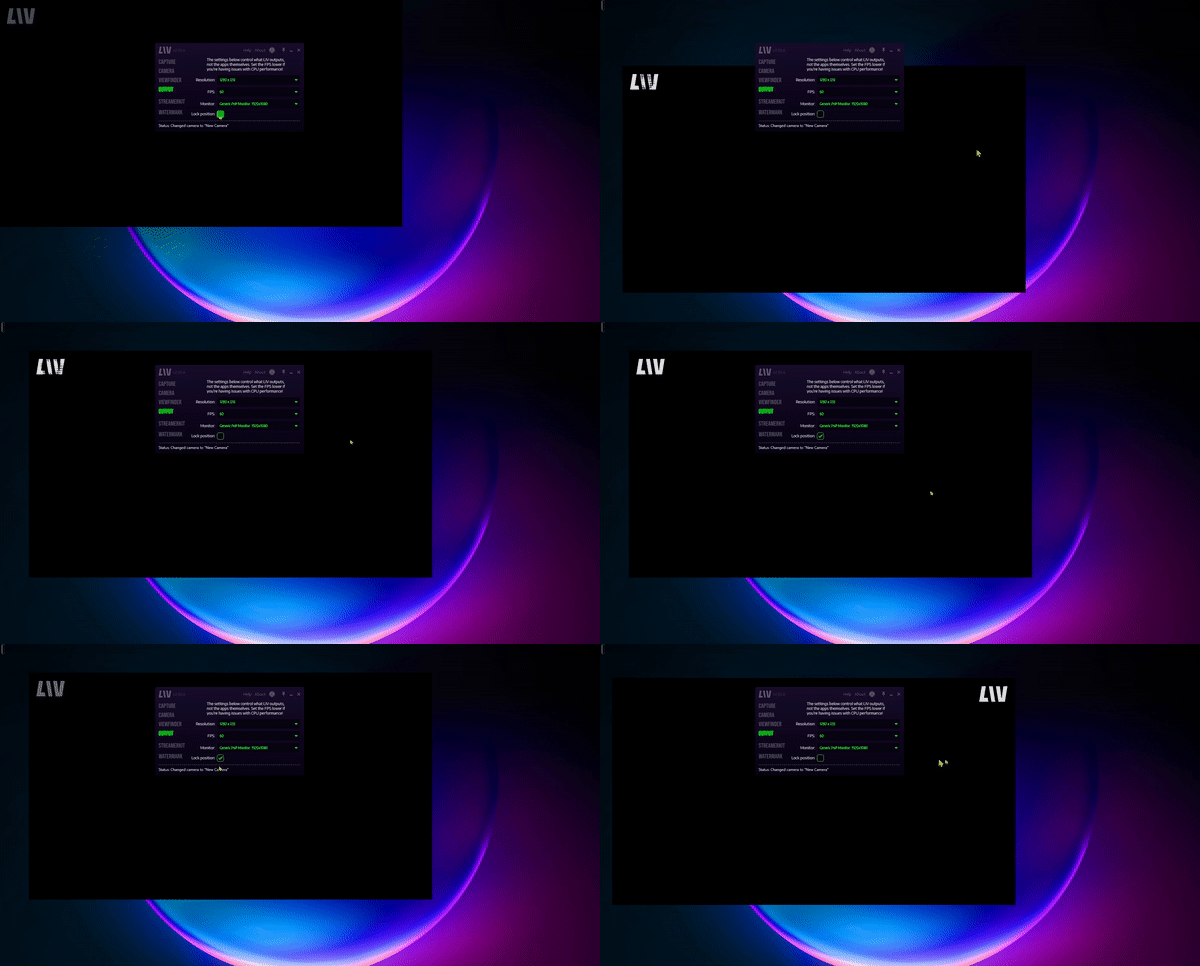
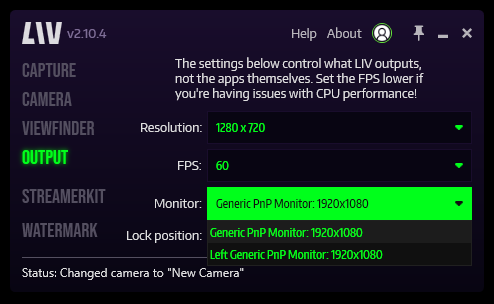 5. Unchecking the **Lock Position** checkbox allows you to freely move the output around on your screen.