> ## Documentation Index
> Fetch the complete documentation index at: https://liv-creators.mintlify.site/llms.txt
> Use this file to discover all available pages before exploring further.
# Kinect v2 or Kinect Azure no green screen solution
Needed:
* Either a [v2 Xbox One Kinect ](https://tinyurl.com/kinectxb1)or a [v4 Kinect Azure](https://tinyurl.com/kinect4)
* For the Xbox One Kinect, you will also need a PC adapter (like this one [https://www.amazon.com/gp/product/B07JHJM9FG/ref=ppx\_yo\_dt\_b\_asin\_title\_o01\_s00?ie=UTF8\&psc=1](https://www.amazon.com/gp/product/B07JHJM9FG/ref=ppx_yo_dt_b_asin_title_o01_s00?ie=UTF8\&psc=1)) One end plugs into the Kinect, another into a wall outlet, and another into a 3.0 USB port.
***The Xbox 360 Kinect is not compatible with LIV!***
1. Download both the [Kinect for Windows runtime](https://www.microsoft.com/en-us/download/details.aspx?id=57578) and the [Kinect SDK](https://www.microsoft.com/en-us/download/details.aspx?id=57578)
2. After extracting the runtime zip, right click on the kinectsensor inf file and click ‘install’
 3. Install the Kinect SDK, then go back to the kinectruntime -x64.msi file in the runtime folder (might look a little different depending on your system) and install that as well.
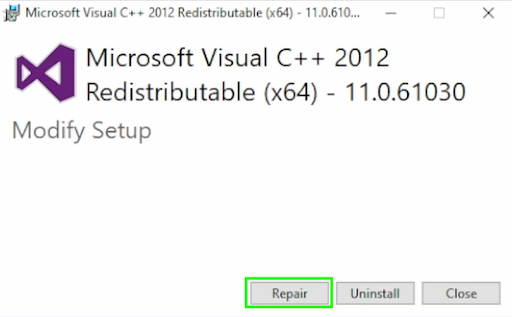
 If you're having troubles with an error code 1920 when trying to install the SDK, In your windows search bar, type in vcredist, click repair, then run through all the previous steps again.
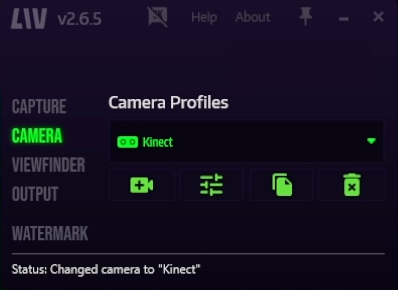
 Your Kinect should now be recognized by your computer, then you can select it as a camera option in LIV.
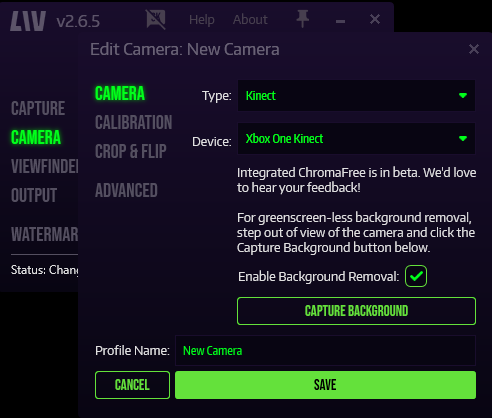
To use the auto background removal feature, move out of view of the camera frame (and remove anything that won’t be there during your recording/stream!), make sure you check the enable background removal box, then click the capture background button, and save.
Your Kinect should now be recognized by your computer, then you can select it as a camera option in LIV.
To use the auto background removal feature, move out of view of the camera frame (and remove anything that won’t be there during your recording/stream!), make sure you check the enable background removal box, then click the capture background button, and save.