> ## Documentation Index
> Fetch the complete documentation index at: https://liv-creators.mintlify.site/llms.txt
> Use this file to discover all available pages before exploring further.
# 3. Preparing Your Calibration
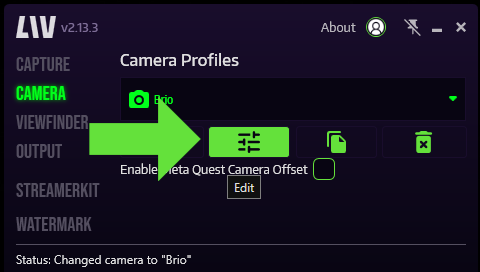
1. On the camera page, click on the **Camera Edit** button.
Do not Enable Meta Quest Camera offset as this will break calibration and not function properly
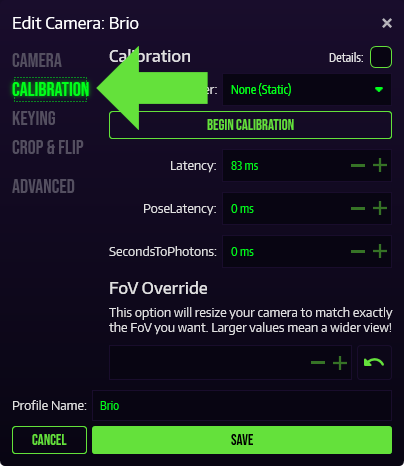
 2. In the camera edit window, select **Calibration.**
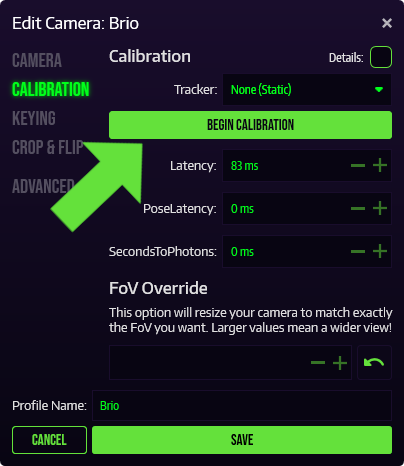
 3. In the **Tracker** drop down, select your tracker (for tracked camera's), or ""None (Static)"" for static cameras.
4. Click on **Begin Calibration** to launch our calibration tool, VIVR.
3. In the **Tracker** drop down, select your tracker (for tracked camera's), or ""None (Static)"" for static cameras.
4. Click on **Begin Calibration** to launch our calibration tool, VIVR.
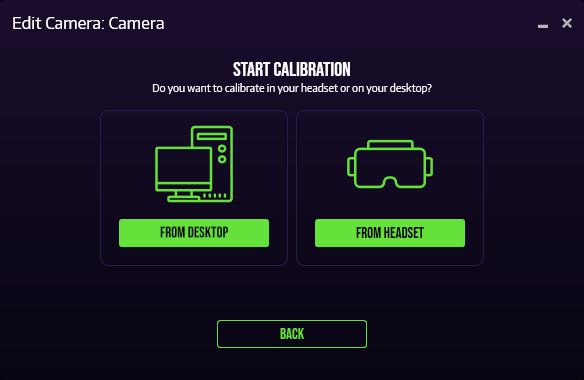
 5. In the Start Calibration window, select **Calibrate From Headset or From Desktop** to begin the calibration process.
 Is LIV crashing or throwing errors at you when you try to begin the calibration? Check out the first two fixes here. If you've got multiple monitors, make sure that the monitor that LIV is rendered on is connected to the same GPU as your VR headset.
Troubleshooting:
LIV's Virtual Camera is attached to your controller; Your controller is stuck on the floor; You cannot calibrate due to our SteamVR driver not starting
Is LIV crashing or throwing errors at you when you try to begin the calibration? Check out the first two fixes here. If you've got multiple monitors, make sure that the monitor that LIV is rendered on is connected to the same GPU as your VR headset.
Troubleshooting:
LIV's Virtual Camera is attached to your controller; Your controller is stuck on the floor; You cannot calibrate due to our SteamVR driver not starting