Documentation Index
Fetch the complete documentation index at: https://liv-creators.mintlify.app/llms.txt
Use this file to discover all available pages before exploring further.
Tablet Mode
Camera
The default LIV Camera mode, this is used to record videos and photos that will be saved to your device.Streaming
The streaming tab looks the same as the camera tab but is used to stream directly from the tablet. To set up streaming, open the LIV Hub App using the cog icon and go through the onboarding process.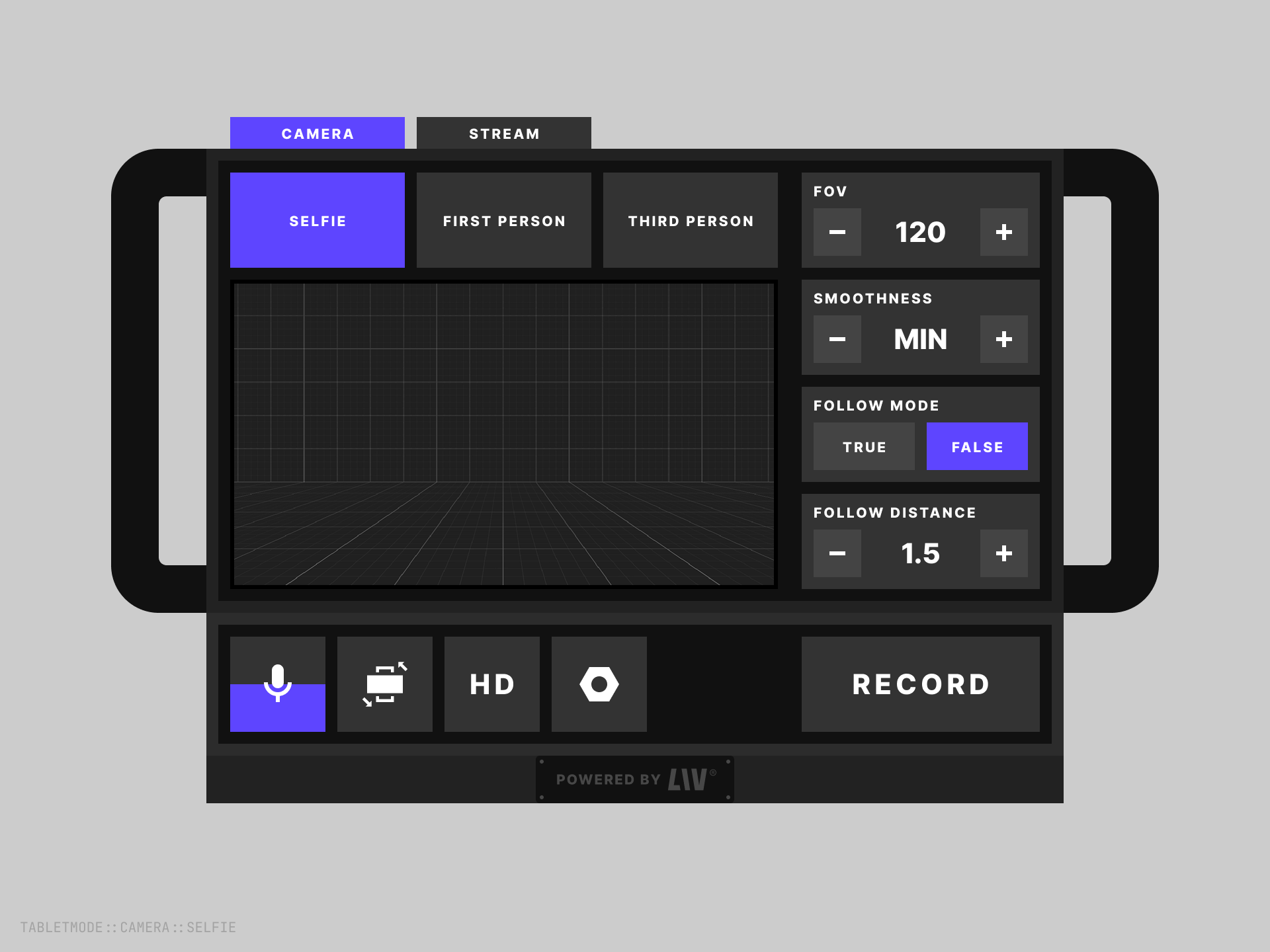
Camera Views
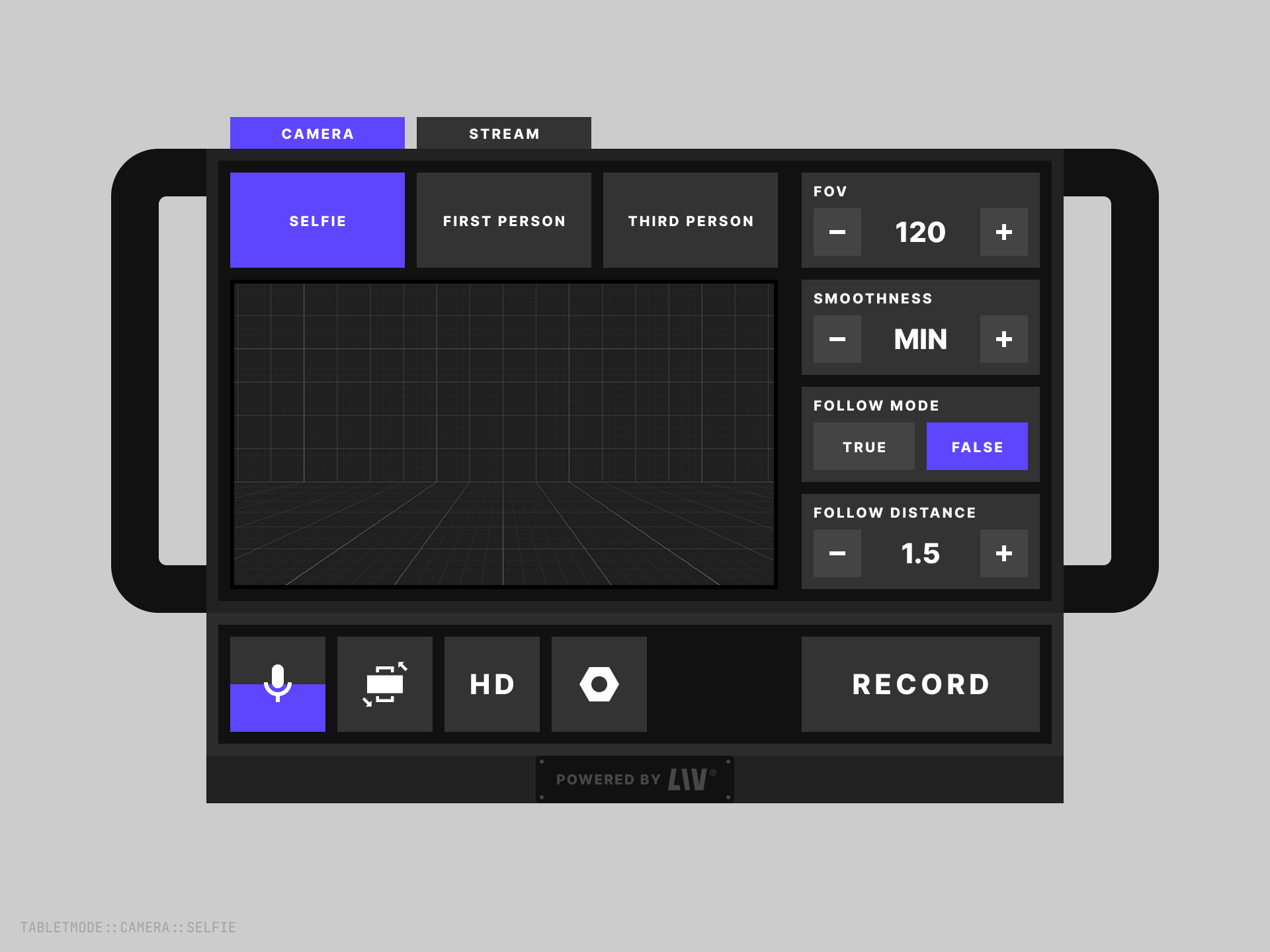
Selfie Camera
Camera from the perspective of the front-facing or back-facing camera on the tablet. Defaults to the front-facing camera.Available Settings
- FOV (50–100) — Adjusts the field of view.
- Smoothing (0–100) — Controls how smooth camera movement appears.
- Flip (Front/Back) — Switches between front and back cameras.
- Follow — Enables the camera to follow the user’s movement.
First Person Camera
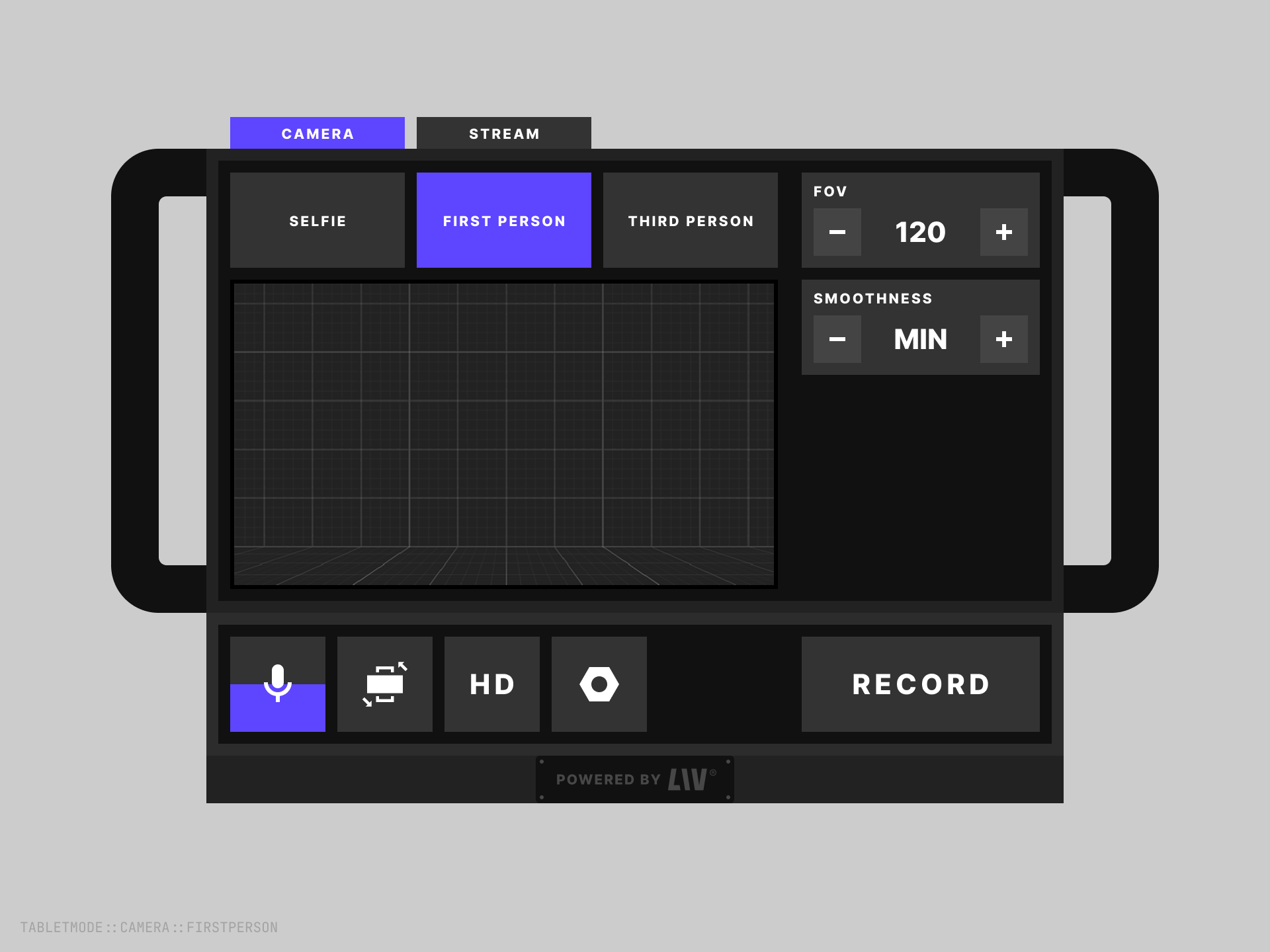
First person camera that films from the player’s perspective. The camera transform is set to the HMD Transform field in the LCK Camera Controller. If this is not set, it defaults to the main camera transform.Available Settings
- FOV (50–100) — Adjusts field of view.
- Smoothing (0–100) — Controls camera motion smoothness.
Third Person Camera
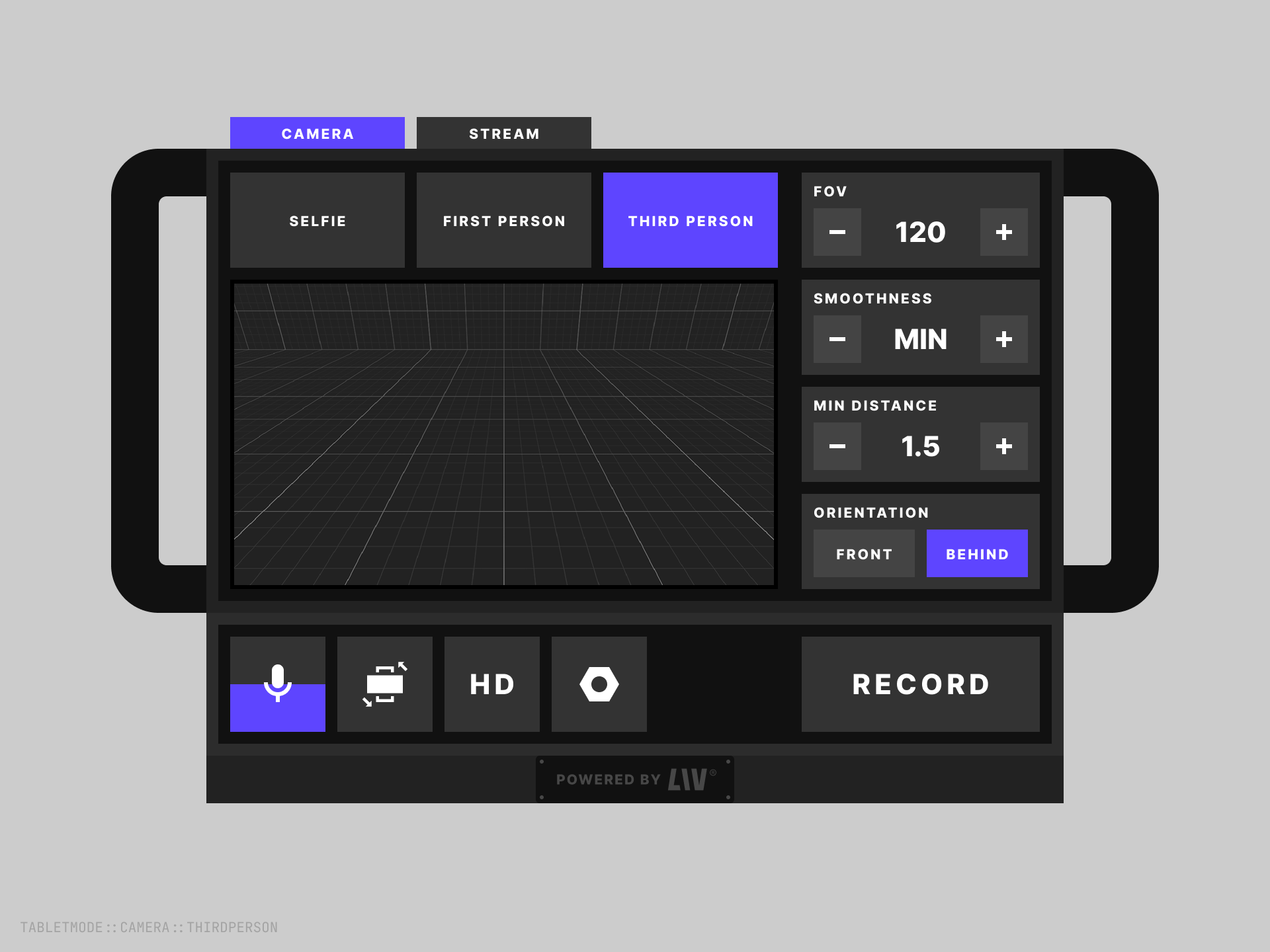
Third person camera that tracks the position of the user’s head. Allows the user to adjust FOV, smoothing, and distance offset. Can flip between the front or back of the user.Available Settings
- FOV (50–100) — Adjusts field of view.
- Smoothing (0–100) — Controls camera motion smoothness.
- Distance (1–5) — Sets how far the camera is positioned from the user.
- Flip (Forward/Behind user HMD) — Toggles camera view orientation.
Global Settings
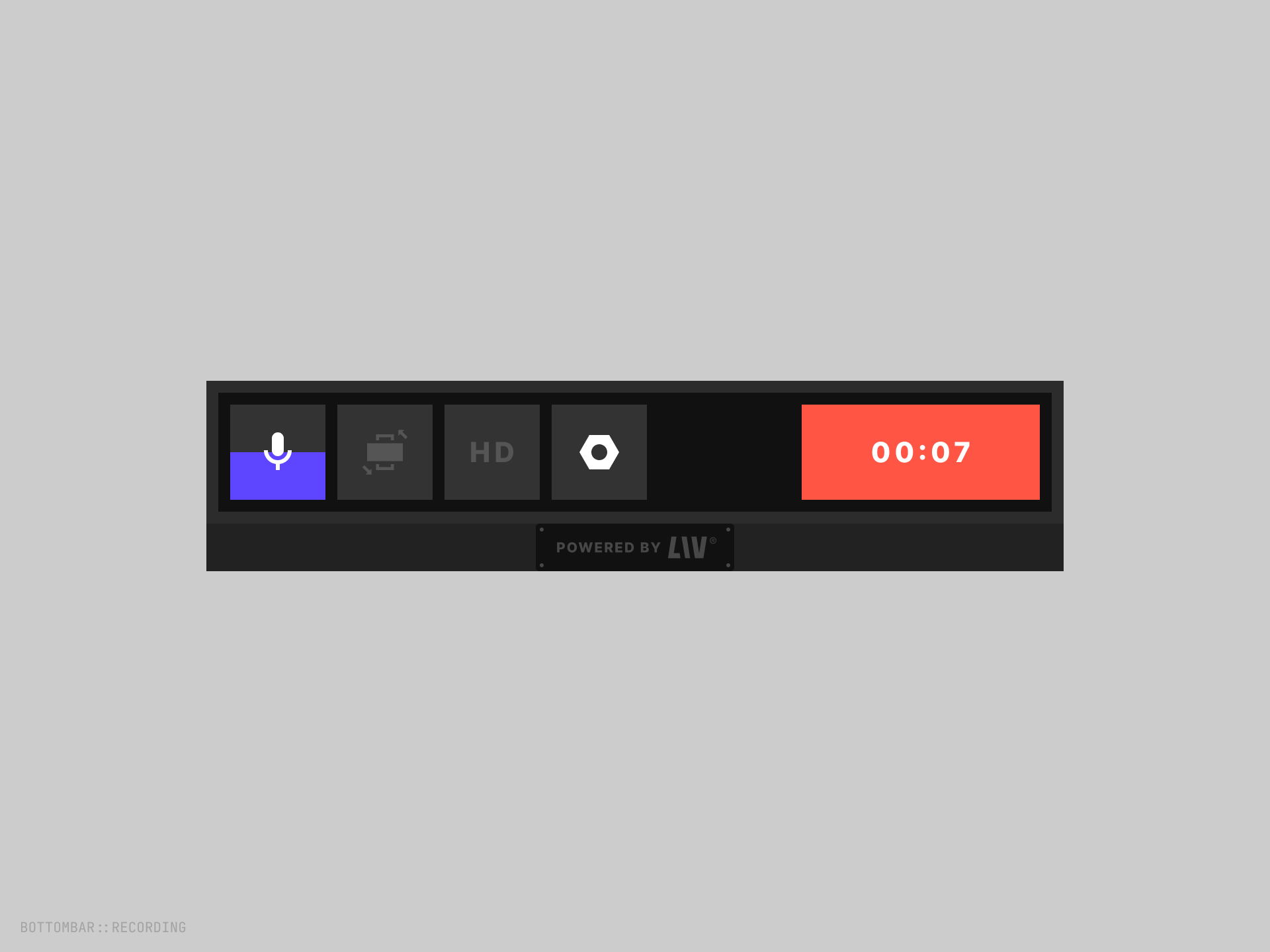
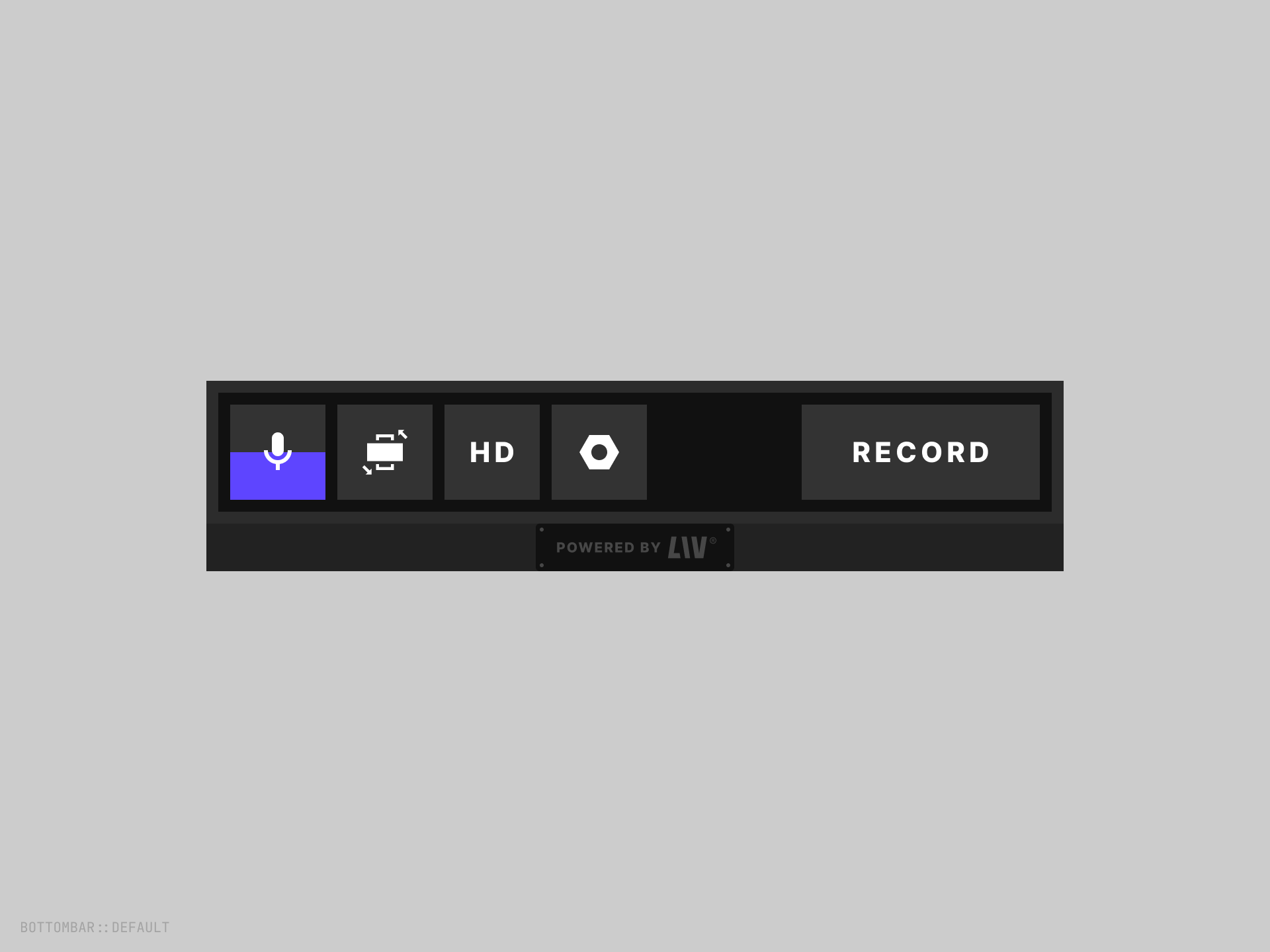
The bottom bar of the LIV camera holds the global settings for streaming and recording across all camera modes. Here you can mute, flip aspect ratio, adjust quality settings, open LIV Hub and toggle recording or streaming.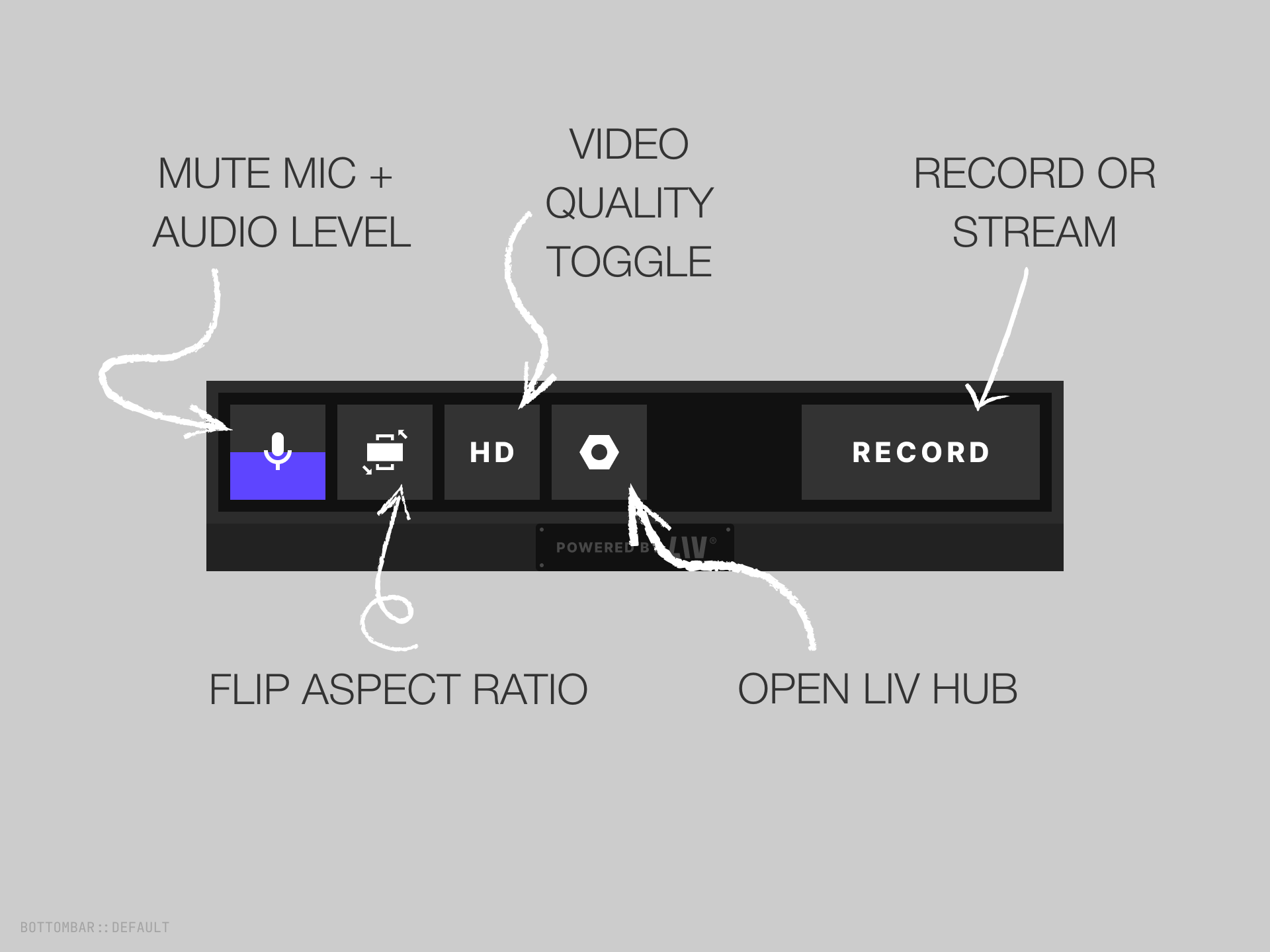
Mute Microphone / Audio Level
Displays audio levels from the user’s microphone. Press to mute or unmute the microphone.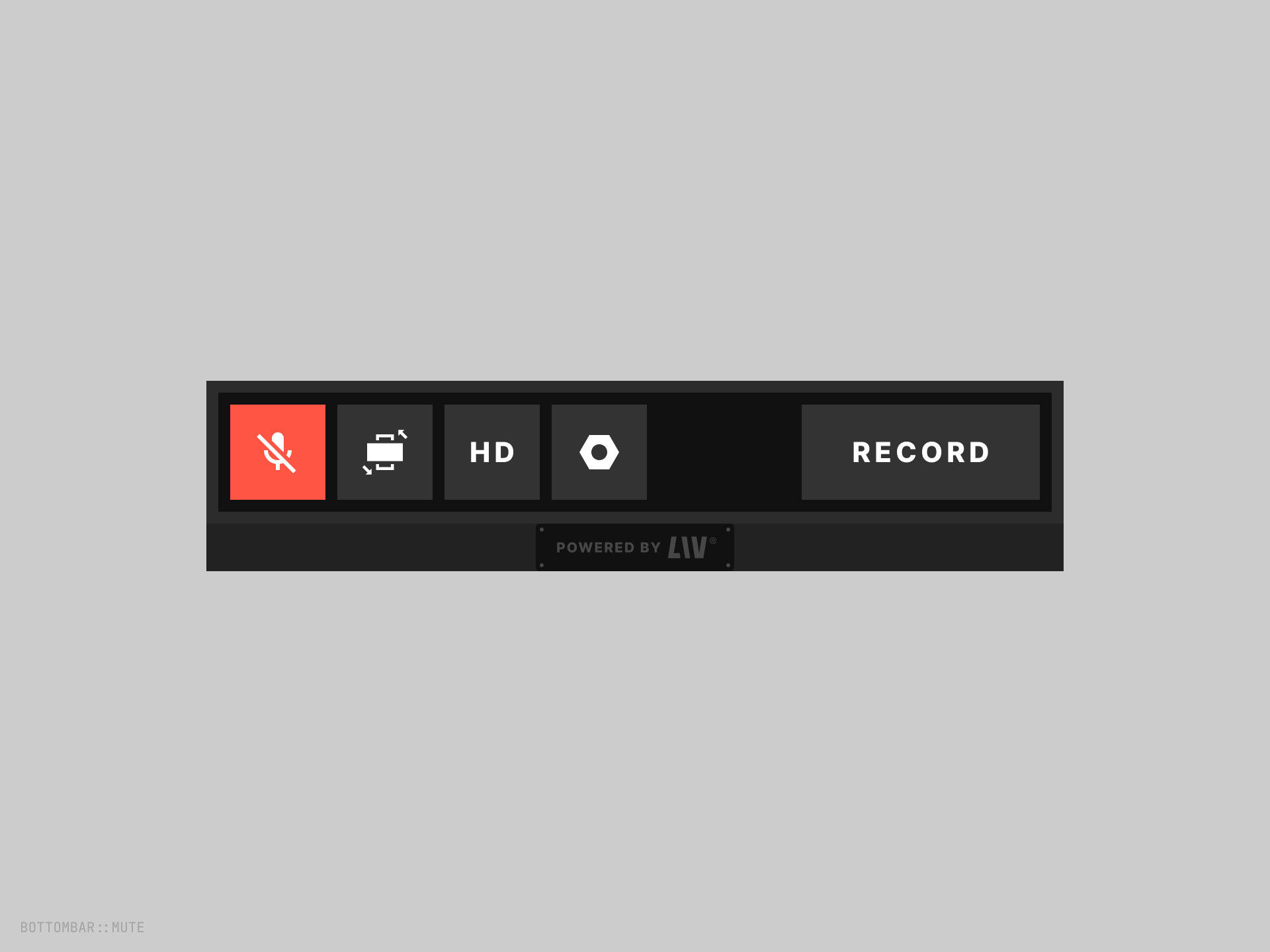
Change Aspect Ratio
Press to switch between landscape and portrait when not recording, represented by a tablet icon with arrows.Quality
Press to switch between HD and SD. These are configured by each developer and may vary by platform, represented by a button with HD/SD/4K labels.LIV Hub (Quest only)
Used to open the LIV Hub app. Used to manage your settings for recording and streaming across all LIV cameras, represented by a button with a cog icon.Record
Press to start or stop recording. Shows the recording duration while active.