

To live stream with LIV Camera to your social platform, you’ll need two critical pieces of information:Documentation Index
Fetch the complete documentation index at: https://liv-creators.mintlify.app/llms.txt
Use this file to discover all available pages before exploring further.
- RTMP Server URL: The address where your video stream is sent.
- Stream Key: A unique code that links your stream to your account. Keep this key private and never share it publicly.
rtmp://a.rtmp.youtube.com/live2/STREAM_KEY
Enter this information on the **Connect Socials **page of the LIV Hub. Below are instructions on how to get your Stream Key for the most common platforms.
YouTube Live
Please note: You can connect directly to YouTube through the LIV Hub - no need for manual RTMP. YouTube provides a Stream Key and RTMP URL through its Live Control Room. Select the key that you want to use for your LIV streams.- Where to find it: YouTube Studio → Create → Go Live → Stream Settings
- Note: You can reuse the same stream key or generate a new one for each event.
- When you enter the RTMP URL in LIV Hub Manual Connect Socials, enter rtmp://YOURSTREAMURL/YOURSTREAMKEY
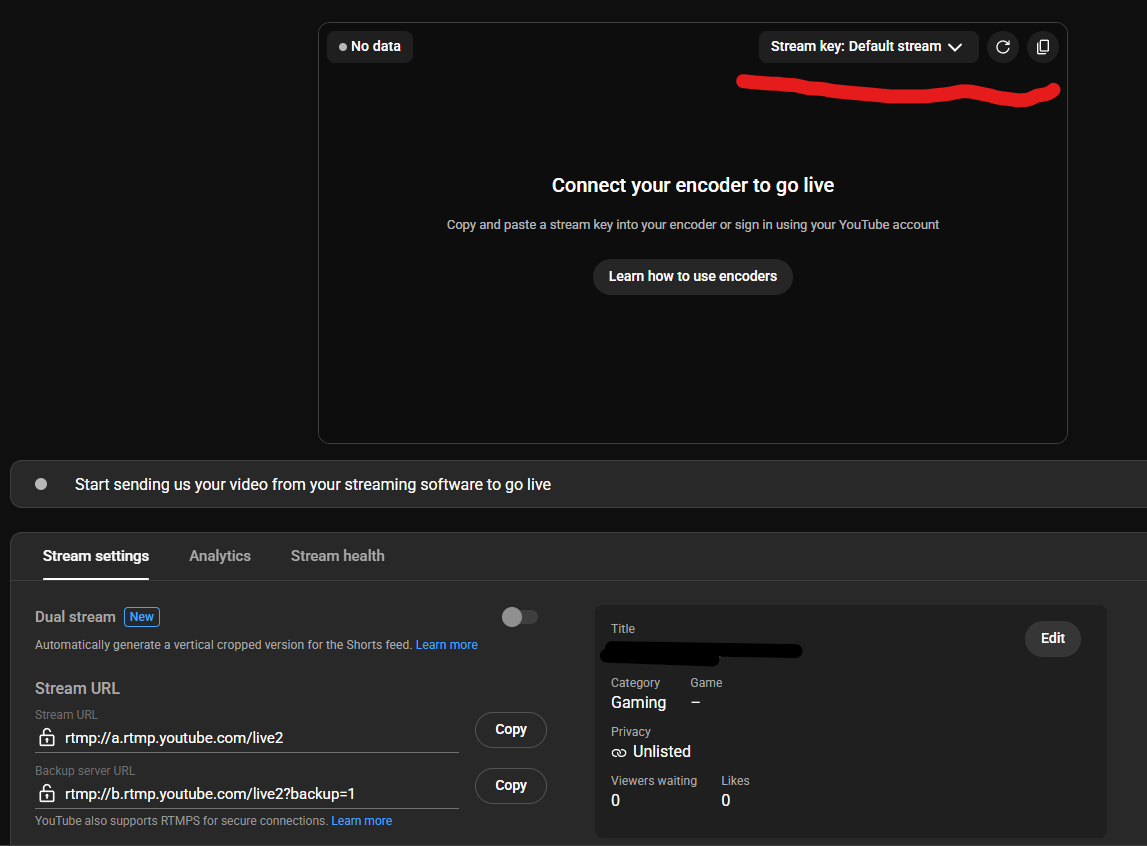
• Get your RTMP URL on YouTube
• Get your Stream Key
Twitch
Please note: You can connect directly to Twitch through the LIV Hub - no need for manual RTMP. Twitch provides a persistent stream key tied directly to your account.- Where to find it: Creator Dashboard → Settings → Stream
- Note: You typically only need the Stream Key; the RTMP server is standard:
rtmp://live.twitch.tv/app/ - When you enter the RTMP URL in LIV Hub Manual Connect Socials, enter rtmp://YOURSTREAMURL/YOURSTREAMKEY
TikTok Live
TikTok requires eligibility for RTMP streaming (usually through TikTok Live Studio or Creator Tools).- If eligible, you’ll see the “Live Center” or “Go Live” option on desktop TikTok or in the mobile app under Creator Tools. From there, retrieve your RTMP URL and Stream Key.
- TikTok stream keys are unique to each live session — you’ll need to repeat this process every time you go live.
- ⚠️ LIV does not provide a stream key. Not all accounts have access to TikTok Live.
Kick
Kick only offers RTMPS, which isn’t supported at this time. However, here’s how you can locate your information:- Log into the Kick.com account you wish to stream from and visit your Creator Dashboard.
- Click the “Channel” menu item.
- Click “Stream URL and Key.”
Important Reminders
- Keep your stream key private. Anyone with access can stream to your account.
- Most platforms allow you to reset your stream key if it’s ever compromised.
- Always double-check which stream key you’re using, especially if you manage multiple channels or platforms.