

LIV Hub and OBS cannot connect directly. A local RTMP server acts as a bridge between LIV and OBS. This process would work for similar capture software, like Streamlabs and Stream Elements.Documentation Index
Fetch the complete documentation index at: https://liv-creators.mintlify.app/llms.txt
Use this file to discover all available pages before exploring further.
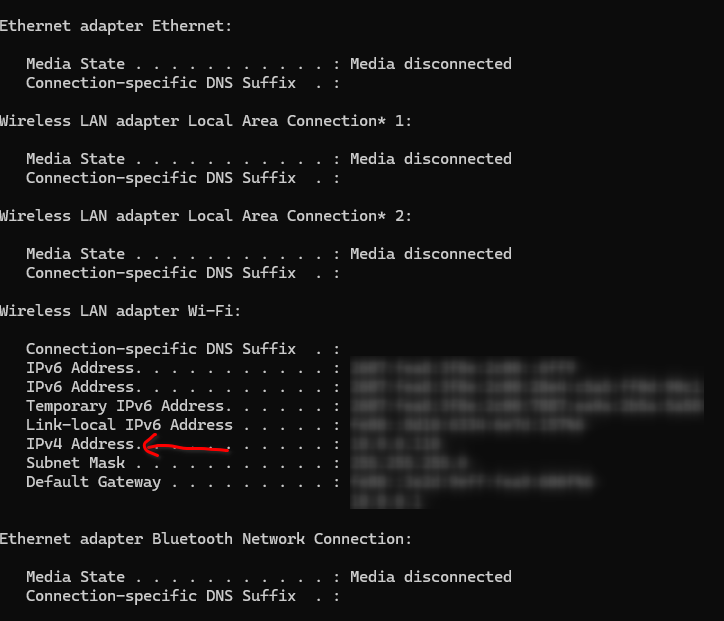
Find Your PC’s Local IP Address
- Press Windows + R, type
cmd, press Enter - Type
ipconfigand press Enter - Look for “IPv4 Address” under your active network adapter (usually something like 192.168.1.x). For the purposes of this guide, I’ll use
101.10.0.110
Set Up RTMP Server on your PC
You can use any RTMP server, some common ones are nginx and xiu. You’ll need to start the server per the instructions of your chosen solution. For this guide, we’ll use nginx.Set up nginx-rtmp
- Download nginx with RTMP module for Windows. https://github.com/illuspas/nginx-rtmp-win32/releases
- Extract the zip.
- **Optional Step **In below examples, I’ve renamed the folder to \nginx and moved it to my C drive.
C:\Program Files\nginx\
- **Optional Step **In below examples, I’ve renamed the folder to \nginx and moved it to my C drive.
- Configure nginx to accept RTMP streams on port 1935 in \nginx\conf
As an example, you can use this file.
Start nginx
Option 1: File Explorer- Open your File Explorer
- Navigate to your nginx folder. C:\Program Files\nginx\ in our example but go to where you have extracted
- Launch
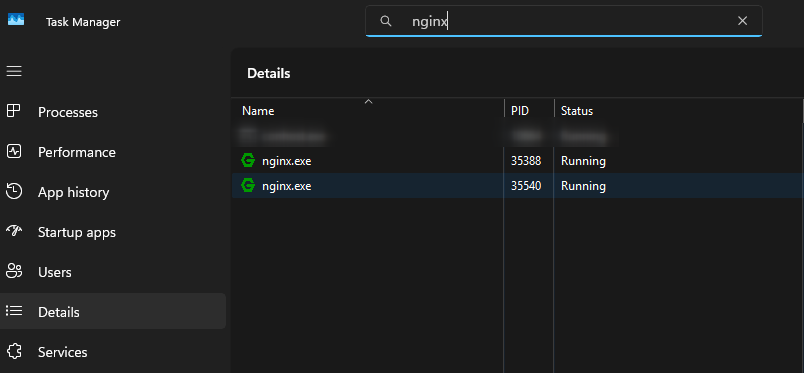
nginx.exe. There is no output window that starts, nginx runs in the background. You can verify it’s running by opening the Task Manager, going to Details, and looking for nginx.exe.
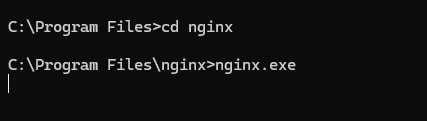
- Press Windows + R, type cmd, press Enter
- Navigate to your nginx folder. C:\Program Files\nginx\ in our example but go to where you have extracted
- Enter command
nginx.exe. There is no output window that starts, nginx runs in the background. You can verify it’s running by opening the Task Manager, going to Details, and looking for nginx.exe.
Set up OBS for a new stream
- Open OBS
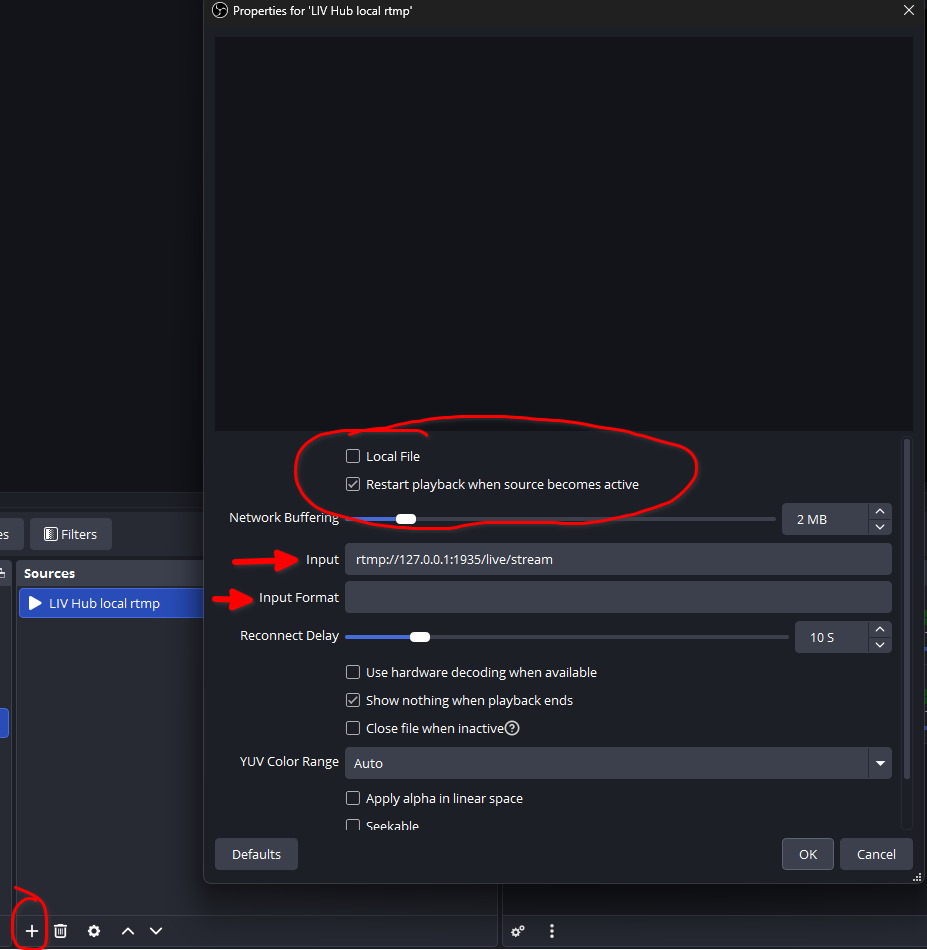
- Add a new “Media Source”
- Check “Local File” unchecked
- Input:
rtmp://127.0.0.1:1935/live/stream
OBS uses 127.0.0.1. If you’re using a different streaming software, you may need a different local IP address.
⚠️Do not use 127.0.0.1 in LIV Hub - Input Format: leave blank
- Click OK
Add a manual connection in LIV Hub
- Manual RTMP connection guide
- Set RTMP URL to:
rtmp://YOUR_PC_IP:1935/live/stream- Example: rtmp://101.10.0.110:1935/live/stream
Start streaming
Start streaming with LIV Camera or Headset streaming. You should see OBS have the capture shortlyStop nginx
Since nginx runs in the background (no window open), don’t forget to stop the service.- Open command prompt
- Navigate to your nginx path
- Use command nginx.exe -s stop
- Press Windows + R, type cmd, press Enter
- Navigate to your nginx folder. C:\Program Files\nginx\ in our example
- Enter command
nginx.exe. There is no output window that starts, nginx runs in the background. You can verify it’s running by opening the Task Manager, going to Details, and looking for nginx.exe.
Troubleshooting
OBS shows black screen -> check nginx is runningStream doesn’t connect-> verify IP and port 1935
No video->ensure OBS video media source ”Local File” is unchecked