

Documentation Index
Fetch the complete documentation index at: https://liv-creators.mintlify.app/llms.txt
Use this file to discover all available pages before exploring further.
Method 1: OBS VirtualCam
Streaming your LIV output on Discord won’t produce audio on its own as LIV doesn’t process sound. While you could solve this through audio routing, the easiest method is to use the OBS VirtualCam tool. If you’re not on the latest version of OBS (v26+), you will need to install VirtualCam separately as a plugin from GitHub. With the plugin installed:- Go Live on Discord with the game window. This is where your sound will come from.
- Add LIV as a source to your OBS scene (make sure to use Game Capture), then hit Tools > VirtualCam. Take note of the target camera and hit Start.
- Select that OBS-Camera device as your video camera in your Voice & Video settings on Discord, then go live with video as well.
Method 2: LIV Discord Audio toggle
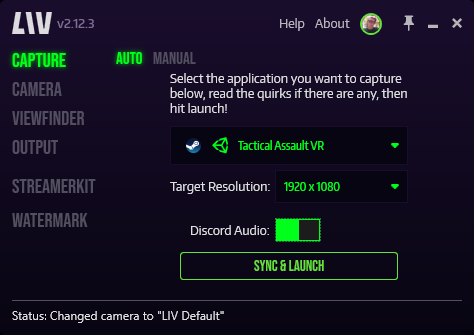
You can now stream LIV directly to Discord with audio!- Capture a game with LIV, auto or manual
- Under the Auto/Manual tab, toggle the Discord Audio button to turn it off or on
- On Discord, “Go Live” in a voice channel, and select the LIV Output (capture.exe) to stream your game!
- Über experimental, may not work as we intended
- It introduces an infinitesimally small amount of audio delay “Ruu: as a rhythm game player, I can attest it’s “nearly perfect”, as in, I literally can’t tell it’s on. We just haven’t measured it yet, because we’ve not needed to.”
- We’re injecting a bit of code into your game to make this work, which is similar to how OBS and Discord do it; this is beta software, you might experience crashes!