

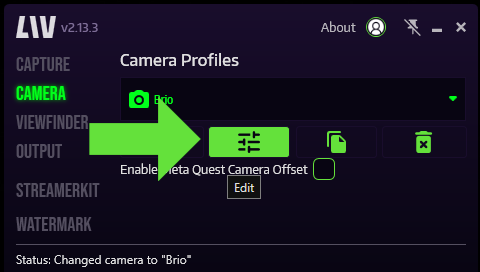
- On the camera page, click on the Camera Edit button.
- In the camera edit window, select Calibration.
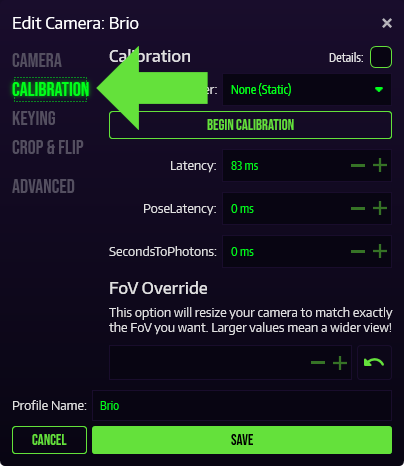
- In the Tracker drop down, select your tracker (for tracked camera’s), or ""None (Static)"" for static cameras.
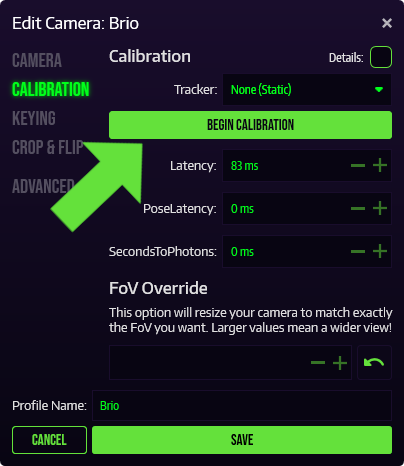
- Click on Begin Calibration to launch our calibration tool, VIVR.
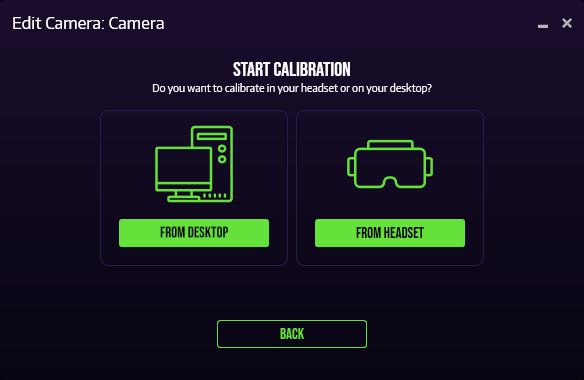
- In the Start Calibration window, select Calibrate From Headset or From Desktop to begin the calibration process.
LIV’s Virtual Camera is attached to your controller; Your controller is stuck on the floor; You cannot calibrate due to our SteamVR driver not starting