

Documentation Index
Fetch the complete documentation index at: https://liv-creators.mintlify.app/llms.txt
Use this file to discover all available pages before exploring further.
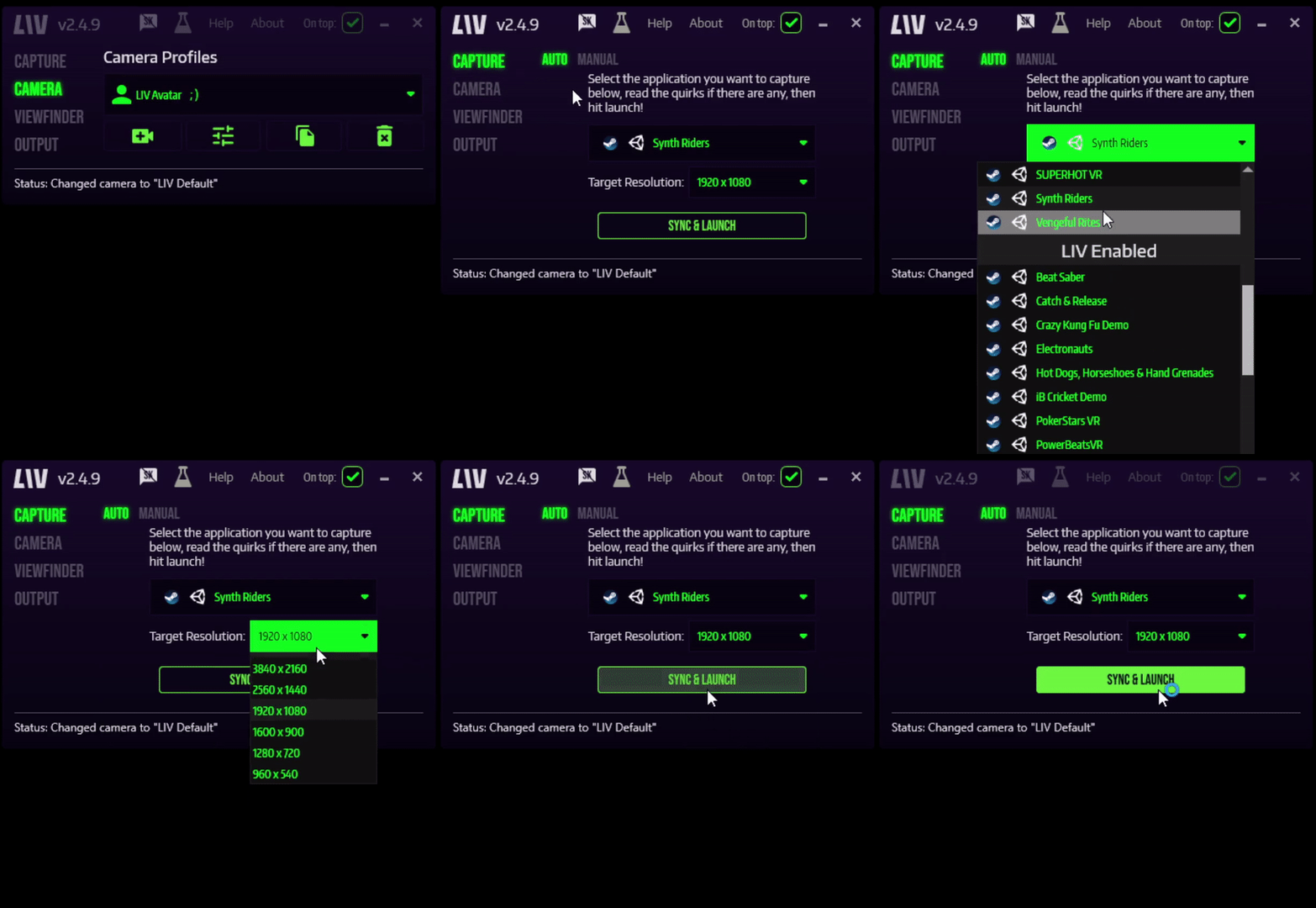
- Click on Capture in the left tab to open up the capture page.
- In the game drop-down, select your LIV-eligible game.
- In Target Resolution, select the resolution at which you want LIV to render the avatar camera.
- Click on Sync & Launch to sync the game to our compositor and launch it!
- Your Avatar feed will show up in the LIV Output window**.** This is the window that you want to be capturing with your broadcasting/recording software.
”-vrmode openvr” to the game’s launch options on Steam, as shown in the video below. If you find that a game that should be supported is broken, please let us know on Discord!